Frequently asked questions
What is this?
Use this application to create areas on the screen with a reduced brightness, or tint with a specific colour. Lock the area to a window so it can move and resize itself as required. Protect your eyes from extreme whites from applications such as Excel.
How do I install this application?
If you have a license you will be able to set the application to Run at start up.
- Locate the MSI installation file that you have downloaded
- Double click the file to initiate the install and follow the onscreen instructions
Alternatively, you can right click the executable and select Pin to Start or Pin to taskbar
How do I use this application?
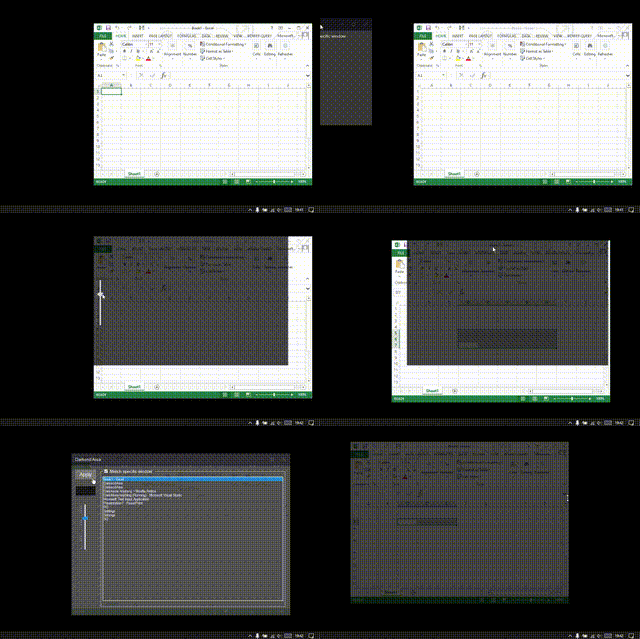
Run the executable file from where you have extracted it to (details above). The application will continue to run in the system tray. Right click the icon in the system tray and select "Create new area." This will open a new area that can be moved to where needed or locked to a window. Set the slider to the intended brightness and click apply.
It's that simple... and if you want, change the colour to set a tint!
How do I apply my license?
Click the link on the splash screen, it will either say unregistered, or will have your email address already.
This will open a new window where you can enter the email address you used to make a payment and the code you will have recieved to that email upon confirmation of payment
When done, click OK and close the window.
If the splash screen had said unregistered, it will have updated now to be the email address.
Where has it gone?
From downloading, check the Downloads folder in Windows Explorer. Otherwise this will be browser specific and you will need to check with the settings of the browser you have.
However, if you mean after you have started it running, it ends up in the system tray, which is usually next to the clock, which by default is the bottom right corner of your primary screen.
If you end up running the application again, dont worry, the already running one will intercept this and create a new darkend area instead.
Do I need a license?
No, but while running without one, the application will be restricted in the following ways;
- Unable to set a tint to an area
- Unable to lock an area to a specified window
- Darkend areas cannot be maximised
- Setting the application to Auto Start will be unavailable
- You will be unable from setting the initial splash screen from showing upon starting
A license purchased, unless stated otherwise, will be unlimited and yours to use forever.
You can purchase a license from here.
If you have been given a license set to expire after a certain date, once the license has expired it will revert to being unregistered and restricted in the ways above.
I lost my license, can I get it back?
A lost license key can be retrieved, they will only be sent to the email address associated with the PayPal account used to make the payment, and there can be no exceptions to this. Any requests will be processed as soon as they can be. This does not mean immediately, but when we are able. Typically within 24 business hours.
Send a message using the Contact form at the bottom of the home page, here.
Why does this app need access to the internet?
The app uses the internet in the following ways;
- To obtain the current date and time from an NTP server
- Confirmation of the validity of the license key, if one is set
- Check for any new versions available
- Log any uncaught critical errors (in which case its only the error details that get submitted)
Does this app use any of my personal information?
Only to confirm the validity of the license key.